
7 min read
Disclosure: As an Amazon Associate and eBay Partner Network publisher, we earn from qualifying purchases. This doesn’t affect what we recommend or how we describe it.
You’re in the middle of cooking dinner, your hands are covered in flour, and your kitchen timer is blaring. You reach to silence it—and realize you have no idea how to reset the countdown so you can start timing your next batch. Or maybe you’re juggling homework, chores, and the school run, and your phone’s timer just buzzed, but now you can’t figure out how to restart it for the next task. This guide cuts through the confusion and walks you through exactly how to reset a countdown timer—whether it’s a basic kitchen gadget, a digital clock, a mobile app, or a smart home device—so you can stop wasting time fiddling and get back to what matters.
Countdown timer reset methods compared
| Type | Reset Method | Timer Range | Alarm Volume | Ease of Use |
|---|---|---|---|---|
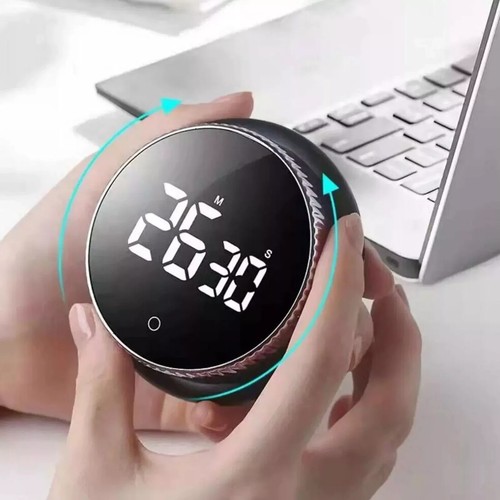
| Manual Dial Timer | Turn dial past “0”, then set time | 1–60 min | Up to 80 dB | Very simple |
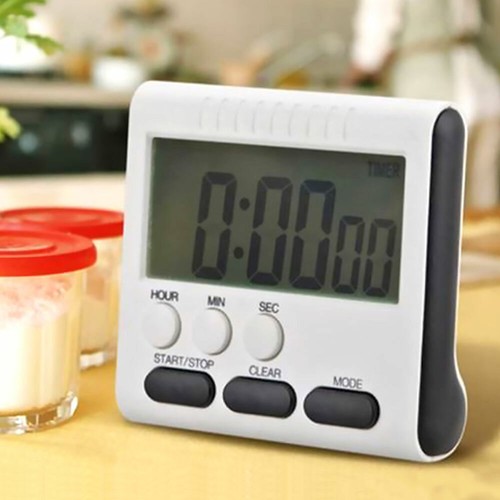
| Digital Button Timer | Press “reset” or “start/stop” twice | 1 sec–99 min | 70–95 dB | Easy |
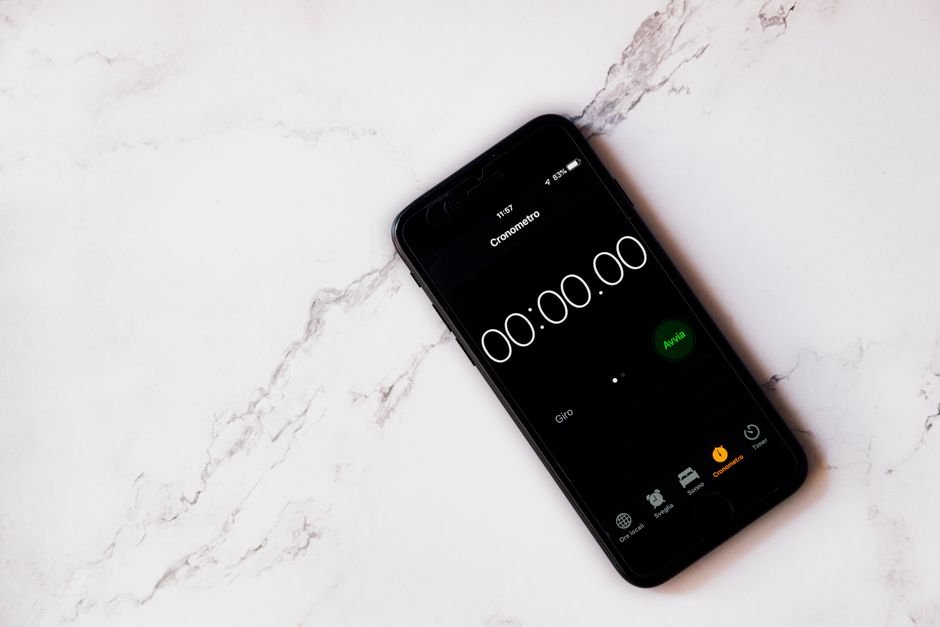
| Mobile App Timer | Tap “reset” or swipe to restart | 1 sec–24 hrs | Phone-dependent | Very easy |
| Smart Speaker Timer | Voice command: “Reset timer” | 1 sec–24 hrs | 70–100 dB | Easy (with setup) |
Step-by-step: How to reset a countdown timer
- Identify your timer type. Is it a manual twist-dial, a digital button timer, a phone app, or a smart device? This affects the reset method.
- Stop or silence the alarm. For dial timers, twist the dial back to zero. For digital timers, press “stop” or “pause” as needed.
- Clear the previous countdown. On manual timers, turn the dial past zero before setting a new time. On digital timers, press “reset” or hold “clear” for 2-3 seconds until the display returns to zero.
- Set your new countdown. Rotate the dial to your desired time, or use the “+” and “–” buttons on a digital timer. In apps, tap the time field and enter your new countdown.
- Start the timer again. Press “start” or say the voice command for smart devices. Double-check the display or confirmation beep so you know it’s running.
Manual dial vs. digital button vs. app: Which reset method is easiest?
Manual dial timers are nearly foolproof—just twist the dial back to zero, then set a new time. The main downside is you can’t set ultra-precise times (good luck timing 37 seconds for your perfect egg). Digital button timers let you set exact times (from 1 second up to 99 minutes or more), but some require pressing multiple buttons in the right order: “stop,” then “reset,” or holding “clear” for several seconds. Mobile app timers are the most flexible—you’re just a tap or swipe away from a fresh countdown, and you can often run multiple timers at once.
For someone who loses track easily, a digital timer with a big, obvious “reset” button is hard to beat. If you’re glued to your phone, an app-based timer lets you copy, restart, or adjust timers without hunting for buttons. Voice-activated smart speakers are great hands-free, but only if you’ve already set them up and remember the correct command (and if you don’t have a mouthful of toothpaste when you need to restart the timer).
Compare options for digital timers with extra-loud alarms if you tend to miss the beep.Related Guides
Common mistakes to avoid
- Forgetting to clear the old countdown: Many timers need you to reset to zero before setting a new time. If you skip this, your next timer might not start—or worse, it could add the new time to the old one.
- Ignoring the alarm volume: Some timers barely whisper (under 70 dB), which is easy to miss if you’re in another room or have a noisy household.
- Buying timers without tactile feedback: Touchscreen-only models can be tricky if your hands are wet or messy, which is common when cooking or wrangling toddlers.
- Overcomplicating with smart devices: Voice assistants are handy, but not if you forget the right phrase or your Wi-Fi drops. Simpler is often better for routine resets.
- Assuming all timers have a “reset” button: Some digital timers only have “start/stop”—which means you may need to hold or double-press to clear the previous time, slowing you down when you’re in a rush.
Choosing timer features for forgetful users
If you’re prone to distractions or juggling a thousand things, look for a timer with a big, clearly labeled “reset” button or dial. A display with at least 1-inch tall digits is easier to see from across the kitchen or living room. Alarm volume matters—aim for at least 80 dB if you want to hear it over a running dishwasher or TV. For digital models, a timer range of 1 second to at least 60 minutes covers most daily uses.
Magnetic backs let you stick the timer to the fridge, so it doesn’t get lost in the junk drawer. Some digital timers have memory recall, letting you restart your last countdown with a single button press—handy for repetitive tasks like medication reminders or laundry loads. If you need to time multiple things at once, look for models with dual or triple timers (often labeled “2-channel” or “3-channel”).
View what’s available for magnetic timers with extra-large displays.FAQs about resetting countdown timers
How loud is the alarm on most timers?
Most manual and digital kitchen timers range from 70 to 95 decibels—about as loud as a vacuum cleaner. If you need something you’ll hear from another room, check for models that specify at least 85 dB. Some app-based timers rely on your phone’s speaker, which can be quieter unless you crank up the volume.
Can I set and reset multiple timers at once?
Some digital timers and most mobile apps let you run two or three countdowns at the same time, useful for busy schedules or multitasking in the kitchen. Manual dial timers usually only offer one countdown at a time. Always check if the timer’s packaging mentions “dual” or “triple” timer functionality if this matters to you.
Is it easy to reset a timer if my hands are wet or messy?
Manual dial timers are easiest to reset with messy hands—just twist the dial, no small buttons to press. Digital timers with large, raised buttons are your next best bet. Touchscreen-only timers (including some phone apps) can be finicky if your fingers are wet or sticky.
How long do the batteries last in digital timers?
Most battery-powered digital timers run on a single AAA or coin cell battery, lasting anywhere from 3 months to over a year, depending on use. Models with louder alarms or backlit displays may drain batteries faster. Always keep a spare battery handy, especially if you rely on your timer for medication or important reminders.
Manual dial vs. digital button: Which is better for forgetful users?
Manual dial timers are nearly impossible to mess up—turn it, and you’re done. Digital timers give you more options and precise timing, but can require extra steps to reset. If you often forget which button does what, stick with a dial or a digital model with a giant, clearly marked “reset” button.
What if my timer stops working or won’t reset?
First, check the battery (for digital timers) and replace it if needed. If a button is stuck or the display is blank, try removing the battery for 10 seconds to force a hard reset. For manual timers, a jammed dial may mean it’s time for a replacement. Most timers are covered by a 1-year warranty—keep your receipt in case you need a swap.
When to consider upgrading your timer
If you find yourself constantly fumbling with tiny buttons, missing alarms, or resetting the same countdown three times because it didn’t “take,” it’s probably time to upgrade. Newer digital timers with tactile buttons and extra-loud alarms make a world of difference. If you’re glued to your phone, a free reminder app can handle repeating timers and notifications—no extra gadget needed. And for anyone who needs medication reminders or has hearing challenges, look for specialty timers with vibration or flashing light features. For more on accessibility in timing devices, check out resources from the National Institute on Deafness and Other Communication Disorders.
For a deeper dive into kitchen safety and why reliable timers matter, the Consumer Product Safety Commission has practical guidance on avoiding common hazards.
Resetting a countdown timer shouldn’t require a PhD in gadgetry. With the right tool and a few simple habits, you’ll spend less time fiddling and more time actually finishing the things you set out to do. And if you need a reminder you can’t ignore, don’t forget to try a free reminder app—sometimes your phone is the best timer you already own.


Still going to forget, aren’t you?
DontForget is a free Telegram reminder app that doesn’t ping once and give up — it hounds you (in a tone you choose, from gentle to brutal) until you actually do the thing. Nothing to download; it runs right inside Telegram.
Try DontForget free →Last updated: July 2026 · About our research